
The launch of Valorant's Episode 7 Act 1 brought a wave of new content, but it also introduced a persistent and frustrating audio bug for many players. This glitch, which silences the crucial voice lines of Agents, has been a significant point of contention within the community. While players can often rely on team communication through external voice channels, the inability to hear enemy ability callouts, such as Ultimate status announcements, strips away a vital layer of tactical awareness. The sound cues from opposing Agents are essential for anticipating pushes, dodging abilities, and formulating counter-strategies. Consequently, this audio malfunction has led to widespread player dissatisfaction. While the development team at Riot Games is undoubtedly working on an official, permanent fix, the community has identified several effective workarounds to mitigate the issue in the interim. These methods focus on refreshing or repairing game files to restore the missing auditory elements.

🛠️ Primary Solution: Language Switch Method
The most widely reported and successful fix involves a simple process of changing the game's language settings. This technique essentially forces the Riot Client to download a fresh set of audio files. Here is a step-by-step guide:
-
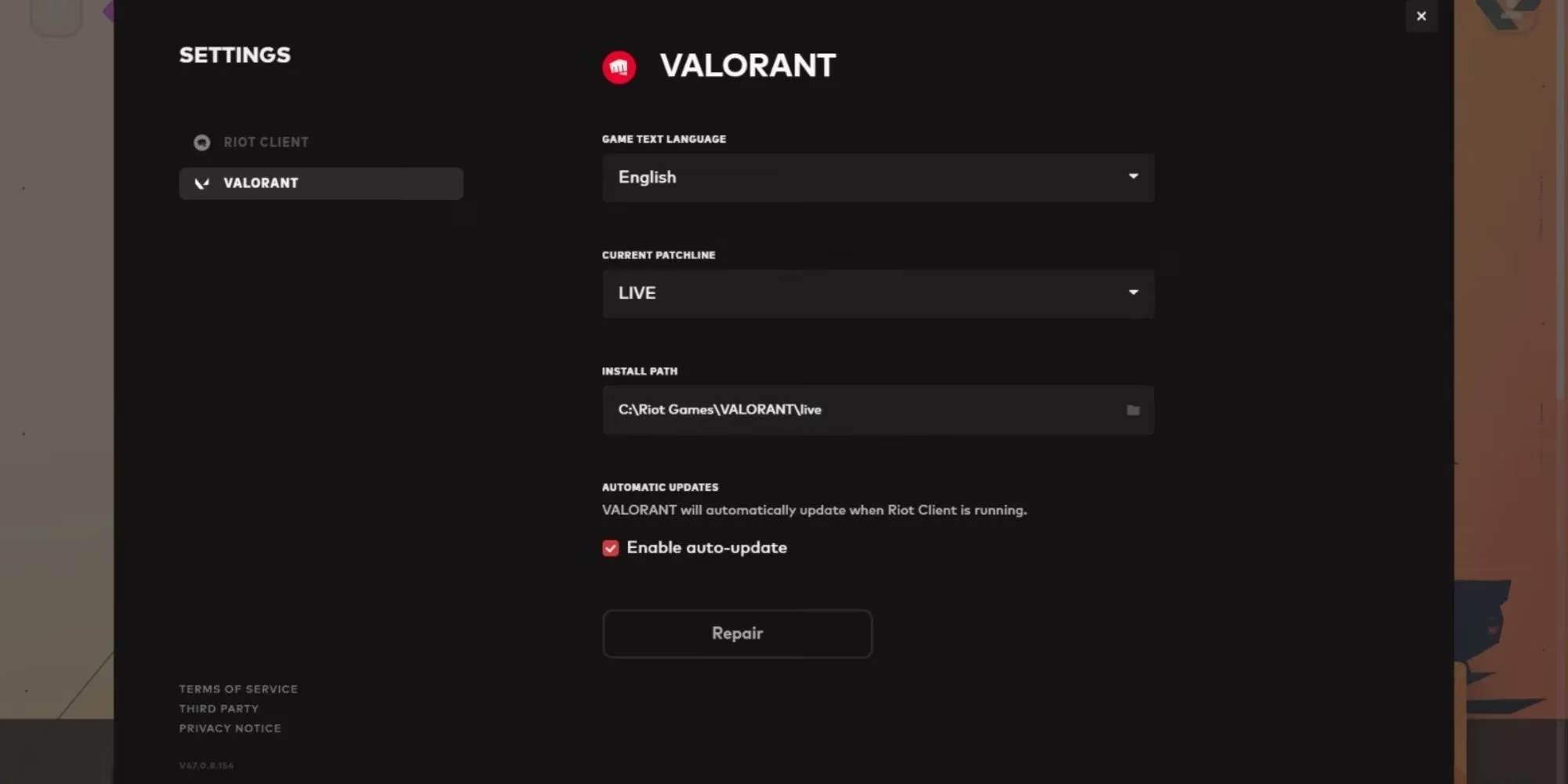
Launch the Riot Client and navigate to the Settings menu. This can be accessed by clicking on your profile icon located in the top-right corner of the launcher.
-
Select Valorant from the list of games to enter its specific settings panel.
-
Locate the "Current Patchline" dropdown menu and ensure it is set to "Live."
-
Find the language selection dropdown. Change your current language to any other available option (e.g., from English to Spanish or French).
-
Confirm the change and return to the main launcher screen. A small update will begin downloading; allow it to complete.
-
Launch Valorant and play for a few minutes in a custom game or practice range.
-
Exit the game and return to the Riot Client settings. Repeat steps 1-4, but this time, switch the language back to your original preferred language.
-
Download the subsequent update and run the game again.
This process works by replacing potentially corrupted local audio archives. It has resolved the voice line issue for a vast number of players without requiring a full reinstall.
🔧 Secondary Solution: Game File Repair
If the language switch method does not yield results, the next logical step is to perform a comprehensive repair of the game's installation files through the Riot Client itself. This scan identifies and fixes any missing or damaged data.
Follow these instructions:
-
Open the Riot Client and ensure Valorant is selected on the main page.
-
Look for the settings or gear icon next to the "Play" button. Clicking this should reveal game-specific options.
-
Among these options, you should find a button labeled "Repair" or "Verify" (the exact terminology may vary). This function is typically located near the game's installation path information.
-
Click the Repair button. The client will then initiate a scan of all game files.
-
If any inconsistencies are detected, the client will automatically download and replace the problematic files, including the crucial audio packs.
This is a more thorough approach than the first method and addresses a broader range of potential file corruption issues beyond just audio.
⚠️ Last Resort: Complete Reinstallation
In rare, extreme cases where both the language switch and file repair fail to restore Agent voice audio, a full reinstallation of Valorant may be necessary. However, this should be considered a last resort due to the significant time investment required to download the entire game again.
Before opting for a full reinstall, consider these final troubleshooting steps:
-
Repeat the Primary Solution: Try the language switch method 2-3 times, ensuring you restart your computer between each attempt.
-
Check Audio Drivers: Ensure your system's audio drivers are up to date.
-
Review In-Game Settings: Double-check that all voice line and sound effect volumes are appropriately configured within Valorant's audio settings menu.
📈 Community Context and Awaiting the Official Patch
It's important to view this audio bug within the broader context of the Episode 7 update. The introduction of the new Sentinel Agent, Deadlock, the fast-paced Team Deathmatch mode, and updates to the progression system were largely met with positive feedback from the player base. However, technical issues like the voice line bug highlight the challenges of deploying large-scale updates to a live service game. The community has been vocal in urging Riot Games to prioritize a fix. Historically, based on Riot's patching cadence for similar issues, players can expect an official correction to be deployed in a subsequent update within a few weeks of the problem's widespread identification. Until that official patch is released, the aforementioned workarounds provide a necessary stopgap for players who rely on every auditory cue to compete at their best.
Quick Troubleshooting Summary Table:
| Method | Description | Success Rate | Time Required |
|---|---|---|---|
| Language Switch | Forces re-download of audio files via language change. | High | Low (10-15 mins) |
| File Repair | Scans and fixes all corrupted/missing game files. | Medium-High | Medium (15-30 mins) |
| Full Reinstall | Deletes and re-downloads the entire game client. | Very High | High (1+ hours) |
Ultimately, while bugs are an unfortunate reality of live game development, the Valorant community's collaborative spirit in sharing solutions has helped many navigate this particular audio obstacle. Players are advised to keep an eye on official Riot Games communications for news regarding the permanent resolution.